How to Run a Remote Design Review Using VR Presenter Mode
You've spent weeks perfecting a residential interior — the material palette is exactly right, the lighting tells the story, every sightline is intentional. Now it's time to present. But your client is in another city, and a screen-share of flat renders won't convey the spatial experience you've designed. This is exactly where remote VR design reviews change the game.
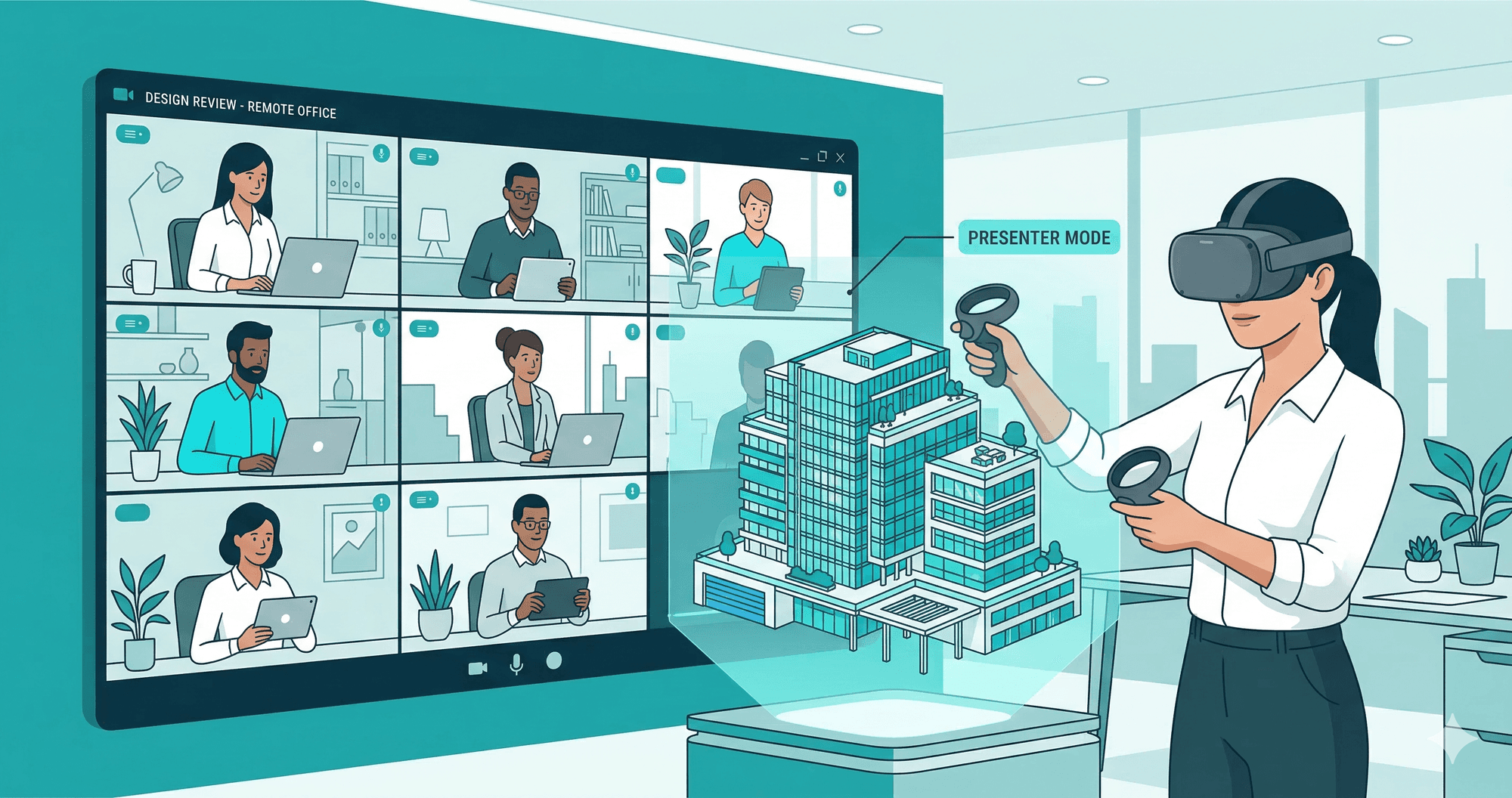
With Presenter Mode in Ooyoun, you can guide a client through your design in real-time virtual reality — even if they're thousands of kilometers away. The client explores in VR on a Meta Quest headset while you control the navigation from your browser. Spectators can watch the live walkthrough on their screens without any hardware at all.
What Is Presenter Mode and Why Does It Matter?
Presenter Mode is a real-time guided tour feature built for architecture and interior design presentations. Here's how the roles work:
- Presenter — controls which viewpoint the group sees, triggers navigation between rooms, and can highlight areas of interest. Operates from any web browser.
- Viewer — explores the current viewpoint in full immersive VR on a Meta Quest headset (Quest 3, Quest 3S, or Quest Pro). They can look around freely within each room while the presenter controls room-to-room movement.
- Spectators — watch the viewer's perspective in real-time on their screens. No headset, no app install, no account creation. Just a URL.
This three-role setup mirrors how design reviews actually work: you lead the conversation, the decision-maker experiences the space, and the rest of the team follows along. It's built on WebSocket connections for low-latency synchronization — when you navigate to the next room, everyone moves together instantly.
Setting Up Your Remote Design Review in Minutes
The entire setup takes less time than joining a typical video call. Here's the workflow:
- Upload your equirectangular panoramas — export 360° renders from your preferred software (V-Ray, Enscape, Lumion, Twinmotion, D5 Render, Corona, Blender — Ooyoun is renderer-agnostic). Each panorama becomes a viewpoint in your tour.
- Place hotspots — use the visual hotspot editor to connect rooms with navigation hotspots. Click where you want the hotspot, drag to position. Add info hotspots to label materials, furniture, or design notes your client should notice.
- Add ambient audio — select background music from the preset library or upload a custom track. Consider matching the mood to the space: calm ambient for a spa, warm acoustic for a residential living area. You can also set sound effects on individual hotspots.
- Publish your project — hit publish to generate a shareable URL. This is the link everyone will use.
- Start the Presenter Mode session — open the project URL in your browser and activate Presenter Mode. Share the same URL with your client (VR viewer) and any spectators.
No software downloads, no plugins, no accounts for your viewers. The client opens the link on their Meta Quest browser and taps "Enter VR." Spectators open it on any device with a web browser.
Running the Presentation: Best Practices
A remote VR design review isn't a passive slideshow — it's an interactive experience. Here's how to make the most of it:
Plan your navigation sequence. Before the session, decide the order you'll move through viewpoints. Start with the entry or the most impactful space to set the tone. A strong opening viewpoint builds confidence in the design immediately.
Pause between rooms. When you navigate to a new viewpoint, give the VR viewer 15–20 seconds to look around naturally before talking through the details. The immersive experience is powerful — let it breathe. Rushing through rooms defeats the purpose of VR.
Use info hotspots as talking points. Place info hotspots on key design elements before the session — the marble countertop you're proposing, the custom light fixture, the window framing the courtyard view. During the presentation, direct the client's attention: "Look to your left — tap the hotspot on the island to see the material specification."
Pair with a voice call. Presenter Mode handles the visual synchronization, but you'll want a separate voice channel for conversation. A simple phone call, WhatsApp call, or Zoom audio works perfectly alongside the VR session.
Record the spectator view. Ask one spectator to screen-record the session. This gives you a reference for follow-up notes and captures any real-time feedback the client gives while exploring.
Why This Beats Screen-Sharing Renders
Traditional remote presentations have a fundamental problem: they flatten three-dimensional design into two-dimensional images. When you screen-share a render, the client sees your curated camera angle — not the full spatial experience. They can't look up to check ceiling heights, turn around to see what's behind them, or get a genuine sense of room proportions.
VR design reviews solve this by preserving spatial context. The client isn't looking at a picture of the space — they're standing inside it. Scale, proportion, material relationships, and spatial flow become intuitive rather than imagined. This translates directly into fewer revision rounds because clients make more informed decisions the first time.
And unlike custom VR development (which can take weeks and thousands of dollars), Ooyoun's workflow goes from rendered panoramas to a shareable VR experience in minutes. No Unity project, no developer needed, no deployment pipeline.
Getting Started With Your First Remote Review
If you already have equirectangular panoramas from your current projects, you're ready to try this today. Upload them to Ooyoun, connect the rooms with hotspots, and run a test session with a colleague before your first client presentation.
The learning curve is minimal — most architects have their first tour published within 15 minutes. And once you've experienced guiding a client through a design in VR rather than narrating over flat images, you won't want to go back.
Book a Call
Ready to transform your architectural visualizations into immersive VR experiences? Book a call with our team to see how Ooyoun can work for your projects.
Have questions? Book a call or email [email protected]