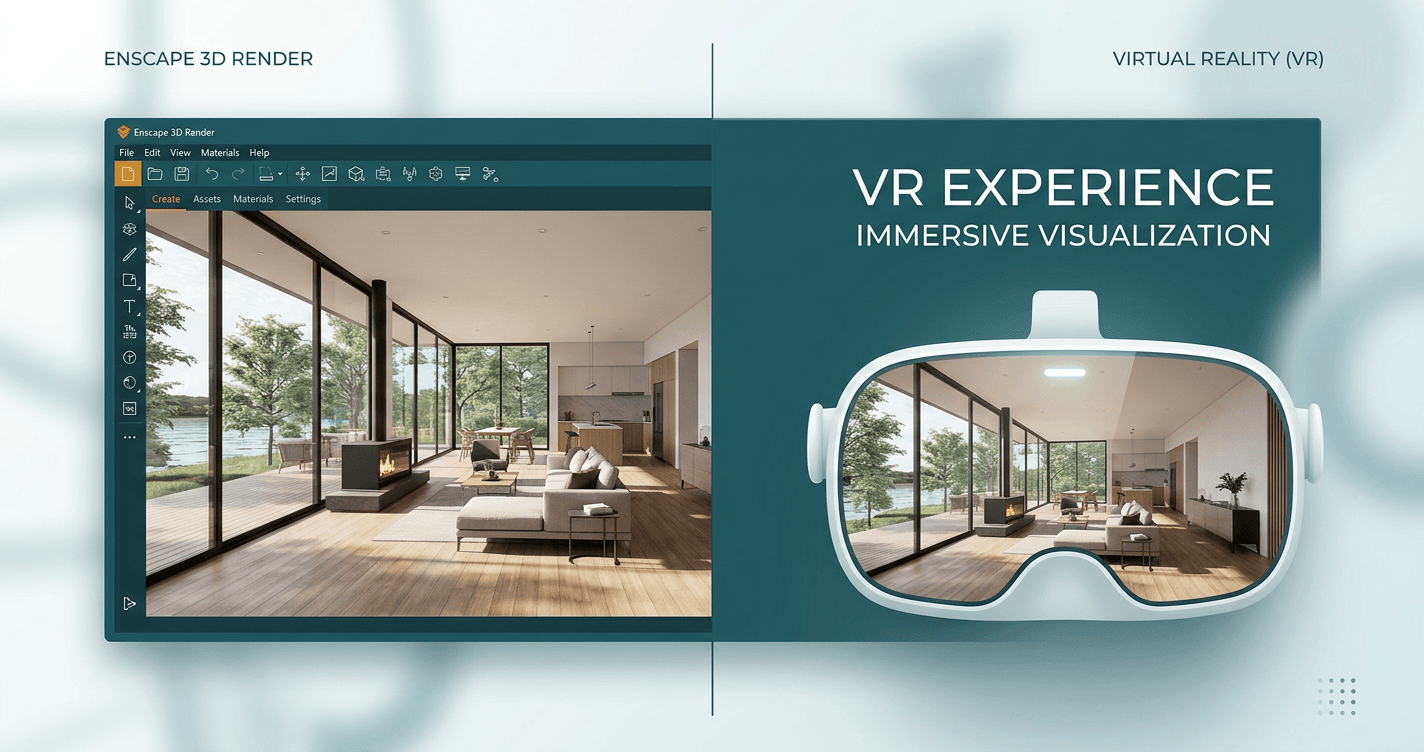
How to Turn Enscape Renders into VR Walkthroughs in Under 10 Minutes
Converting Enscape renders into immersive VR walkthroughs takes less than 10 minutes. No complex setup, no expensive plugins, no technical expertise required.
Why VR Walkthroughs Matter
Traditional 2D presentations have clear limitations:
- Clients struggle to visualize spatial relationships from flat images
- Miscommunication leads to costly construction revisions
- Competitors using VR have a competitive advantage
Industry surveys show 73% of clients can't accurately visualize spaces from 2D plans alone. VR eliminates this gap.
What You Need
- Enscape (version 3.0+)
- Your 3D model (Revit, SketchUp, Rhino, ArchiCAD, etc.)
- Ooyoun account
- Optional: Meta Quest 3 for VR testing
Time required: 5-10 minutes
Step-by-Step Workflow
1. Export Panoramic Renders from Enscape
Enscape makes this simple:
- Open your model in Enscape
- Navigate to first viewpoint
- Settings → Output → Panorama
- Set resolution to 8192 x 4096 (8K)
- Choose Equirectangular format
- Click Export Panorama
- Repeat for each key space (8-12 viewpoints recommended)
Optimal settings:
- Resolution: 8K (8192 x 4096)
- Format: Equirectangular
- Quality: Ultra
- Camera height: 1.6m / 5.3ft (eye level)
Pro tip: Export panoramas at eye level for realistic VR experiences.
2. Upload Panoramas to Ooyoun
- Go to ooyoun.com
- Click New Project
- Name your project descriptively
- Drag and drop all panoramas
- Wait for processing (30-60 seconds per image)
Ooyoun automatically optimizes images for VR viewing across all devices.
3. Connect Spaces with Hotspots
Make your walkthrough interactive:
- Click first panorama
- Click Add Hotspot (or press H)
- Position hotspot at doorway or transition point
- Select destination panorama
- Repeat for all connections
Hotspot best practices:
- Place at doorways and hallway entrances
- Limit to 3-5 hotspots per space
- Make navigation bidirectional (A→B and B→A)
- Think about natural walking flow
4. Publish and Share
- Click Publish
- Copy generated link
- Send to client via email or text
That's it. No app download, no account creation for your client.
What Clients Experience
Desktop/Laptop: Click and drag to look around; click hotspots to navigate
Mobile/Tablet: Swipe to look around; tap hotspots to move
Meta Quest 3: Open link in Quest browser → Click "Enter VR" → Fully immersive experience
Pro Tips
- Plan viewpoints before exporting
- Set proper lighting in Enscape
- Create logical navigation flow
- Test walkthrough yourself first
- Provide brief navigation instructions when sharing
Troubleshooting
Panoramas look distorted: Verify equirectangular format and 2:1 aspect ratio; re-export from Enscape
Hotspots not appearing: Ensure destination is selected; refresh editor
Low image quality in VR: Re-export at 8K with Ultra quality and 90%+ JPEG
Client can't open link: Verify link copied completely; try different browser (Chrome, Safari, Firefox)
Real-World Results
Architects using VR presentations report:
- 40% fewer design revisions (better client understanding upfront)
- 3x higher engagement during client meetings
- 20% faster project approvals (confident decisions)
The 5-10 minute investment pays back immediately through reduced clarification meetings and fewer revision cycles.
Works with Other Renderers
This workflow works with any renderer that exports equirectangular panoramas:
V-Ray, Lumion, Twinmotion, D5 Render, Corona Renderer, Blender
The process is identical: export panoramas → upload to Ooyoun → connect with hotspots → share.
Book a Call
Ready to transform your Enscape renders into immersive VR walkthroughs? Book a call with our team to see how Ooyoun works for your projects.
Next Steps
- Export your first set of Enscape panoramas
- Test the workflow with a small project (3-5 viewpoints)
- Contact us to discuss your specific needs
Related Guides
More guides coming soon. Contact us for personalized guidance.
Questions? Book a call or email [email protected]