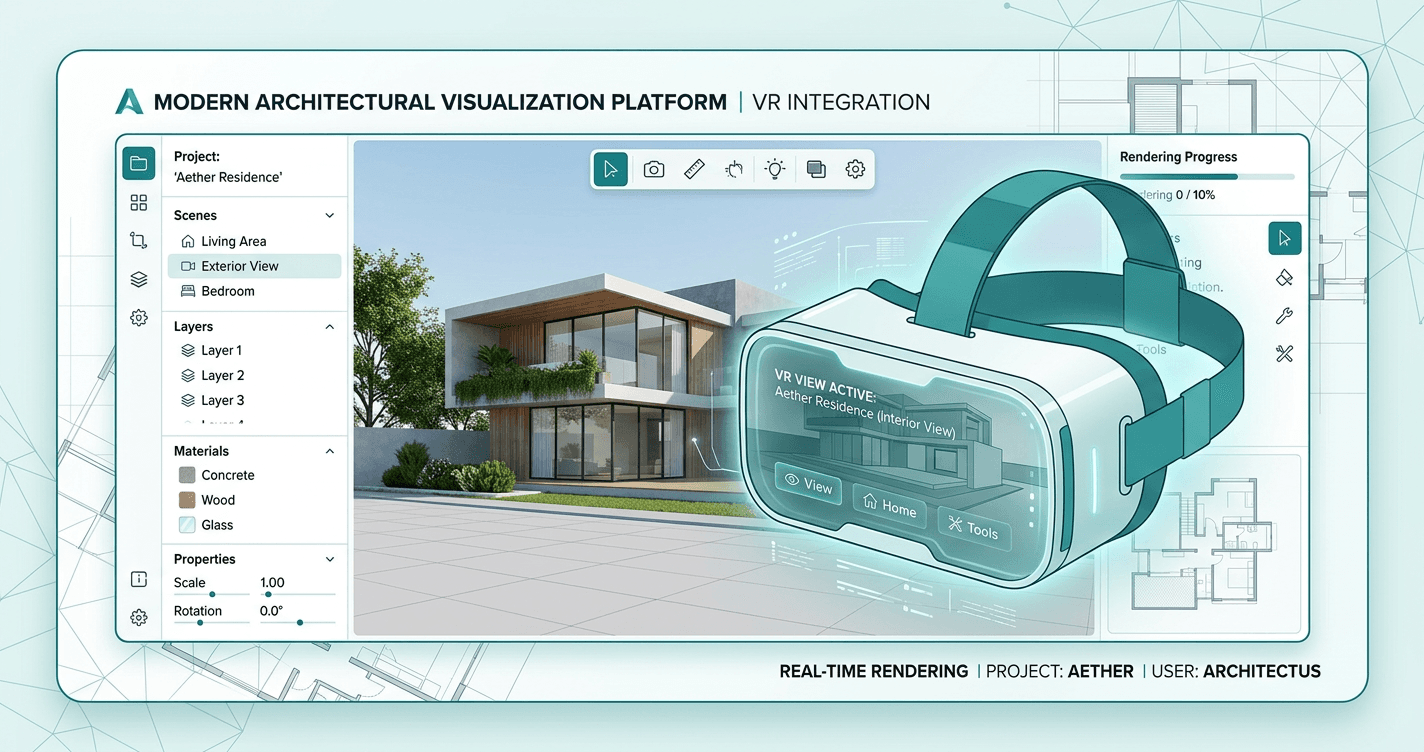
Twinmotion VR Export: The Complete Guide
If you're using Twinmotion for architectural visualizations, you've likely faced this challenge: clients struggle to understand 2D renders. They can't grasp spatial relationships or how rooms connect. VR solves this by letting clients experience your design before construction begins.
This guide shows you how to convert Twinmotion panoramas into VR walkthroughs that work on Quest 3 headsets, desktops, tablets, and phones — no app installation required.
Why VR Presentations Matter
Traditional 2D presentations have limitations that cost time and money:
- Spatial confusion leads to endless clarification meetings
- Miscommunication causes costly design revisions
- Weak presentations lose projects to competitors
VR eliminates these problems. Studies show 73% of clients can't accurately visualize spaces from 2D plans alone. VR bridges that gap by putting them inside the design.
What You'll Need
- Twinmotion (version 3.0 or newer)
- Your 3D model (any format Twinmotion supports)
- Ooyoun account (contact us)
- Optional: Meta Quest 3 for testing
Time investment: 15-20 minutes for your first walkthrough, 5-10 minutes thereafter.
Step-by-Step Workflow
1. Plan Your Viewpoints
Before exporting, plan the experience:
- Start: Main entrance
- Key spaces: Living areas, bedrooms, workspaces
- Transitions: Hallways, stairs
- Highlights: Special features, views
How many? 8-12 viewpoints works for most projects. You can add more later.
Pro tip: Sketch a bubble diagram showing viewpoint connections to avoid awkward navigation.
2. Export Panoramas from Twinmotion
Configure your exports for VR quality:
- Set camera height to 1.6 meters (eye level)
- Export as equirectangular panoramas
- Resolution: 8192 x 4096 pixels (8K)
- Aspect ratio: 2:1 (critical)
- Quality: 90%+ JPEG or PNG
- Use descriptive filenames:
01-entrance.jpg,02-living-room.jpg
Export all viewpoints to a dedicated project folder.
3. Upload to Ooyoun
- Go to ooyoun.com and sign in
- Create a New Project
- Upload all panoramas (drag & drop)
- Wait ~30-60 seconds per image for processing
Ooyoun optimizes images for web/VR viewing and creates multiple resolution versions.
4. Create Navigation Hotspots
Hotspots are interactive points that let viewers move between spaces:
- Click a panorama to open the editor
- Click Add Hotspot (or press H)
- Place it where users should navigate from (doorways work best)
- Select the destination panorama
- Add an optional label
Best practices:
- Make navigation bidirectional (if you can go A→B, add B→A)
- Limit to 3-5 hotspots per space
- Place at waist height for consistency
- Test the flow before sharing
5. Test and Publish
Desktop: Click Preview and test all hotspot connections
VR (Quest 3): Open the preview link in Quest browser and click "Enter VR"
Once tested, click Publish to generate a shareable link. Clients need nothing — no app, no account, just a browser.
Pro Tips
- Export at consistent eye level height
- Keep lighting uniform across panoramas
- Include outdoor views for context
- Place hotspots at natural transition points
- Test navigation flow yourself before sharing
Troubleshooting
Panoramas look distorted: Verify equirectangular format and 2:1 aspect ratio
Low VR quality: Re-export at 8K resolution with 90%+ quality
Hotspots missing: Ensure destination is selected and refresh editor
Real-World Impact
Architects using VR presentations report:
- 40% fewer revisions — clients understand designs upfront
- 20-30% higher win rates — better presentations win projects
- Faster approvals — confident clients decide quickly
The time invested (10-15 minutes) pays back immediately through reduced clarification meetings and revision cycles.
Book a Call
Ready to transform your Twinmotion renders into immersive VR walkthroughs? Book a call with our team to see how Ooyoun works for your projects.
Next Steps
- Review your existing Twinmotion panoramas
- Identify 8-12 key viewpoints for your next project
- Contact us to get started
Related Guides
More guides coming soon. Contact us for personalized guidance.
Questions about Twinmotion VR? Book a call or email [email protected]